Preview
In this blog, we compare Modern SharePoint pages, HTML pages, and Copilot Pages. See examples, learn where each page type works best, understand their limitations, and explore how retention and records management apply to each.
Let’s set the stage
Modern SharePoint pages have been pretty consistent for years: create a modern page, add sections and web parts, publish it.
It is getting more nuanced now, however.
Microsoft 365 now has three different things that can reasonably be called a “page”: modern SharePoint pages, the new HTML pages in SharePoint, and Copilot Pages. Despite the similar names, they serve very different purposes.
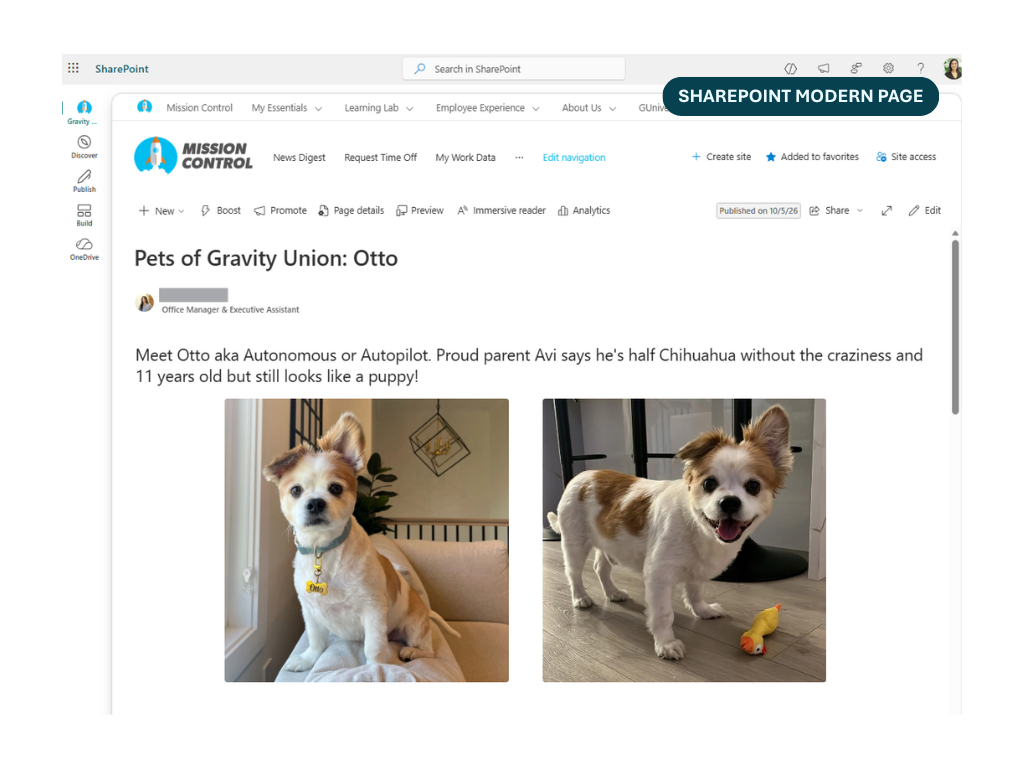
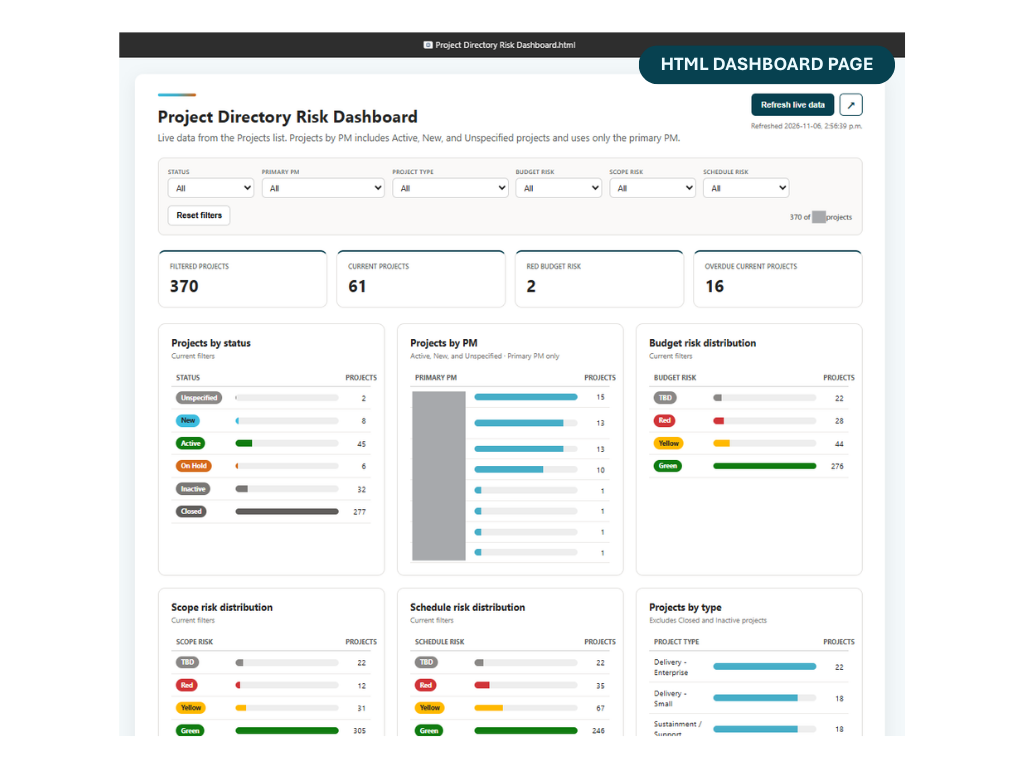
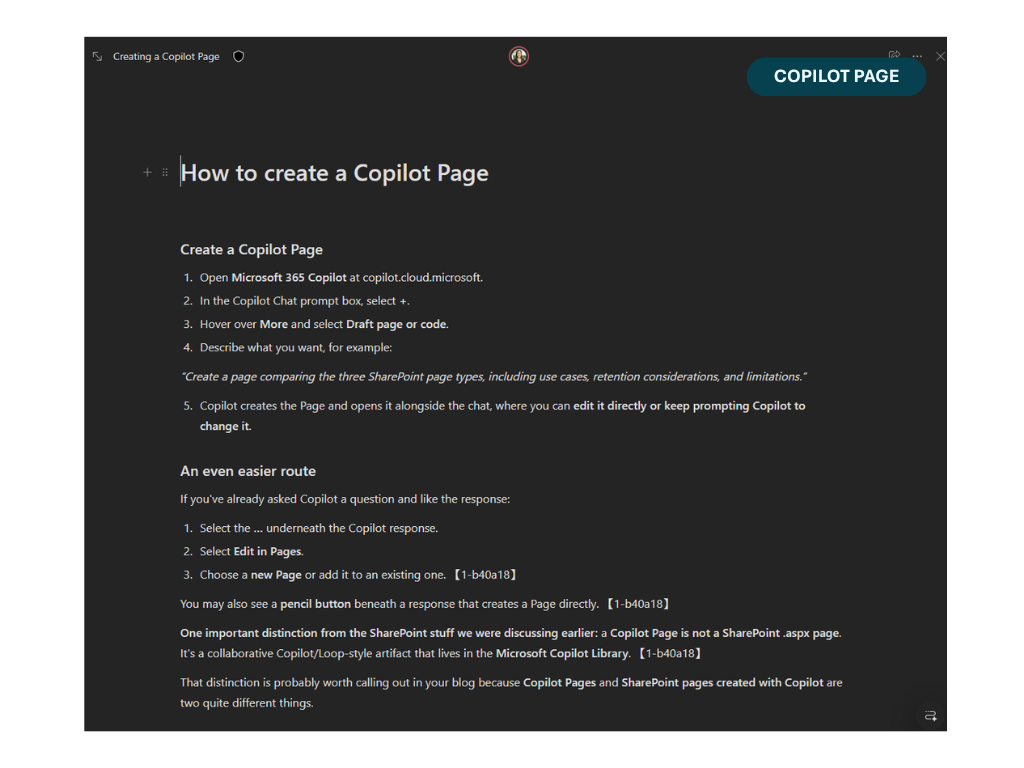
Swipe to see examples of pages: SharePoint Modern Page, HTML Dashboard Page, and Copilot Page
For most organizations, modern SharePoint pages should still be the default. They're integrated with the site, navigation, search and publishing experience and provide the consistency that’s desired in an intranet.
Copilot Pages sit at the other end of the spectrum. They're really collaborative working canvases. They're great for taking something generated in Copilot, developing it with others and turning it into something useful, but they aren’t a replacement for published intranet content.
The interesting new option is in the middle: HTML pages
What's different about HTML pages?
SharePoint can now host and publish .html files directly through the Site Pages library.
You can upload an existing HTML experience or have Copilot create one for you. That opens up designs that would traditionally have required a developer, SPFx solution or a collection of web parts.
This is a video from Microsoft that shows how to create a HTML dashboard page with Copilot using data in a list:
This is where I think HTML pages become genuinely interesting. Instead of finding the right combination of sections and web parts, I can describe an experience and let Copilot help build it.
⚠️ One word of caution though: Don’t start rebuilding an entire intranet or SharePoint sites in HTML.
They're still SharePoint pages, but they behave differently
One thing I initially wondered was whether HTML pages lose the SharePoint header and navigation.
Much to my relief, they don’t have to.
The HTML content runs within the surrounding SharePoint experience, so the SharePoint header, navigation and footer remain. The HTML itself, however, is essentially its own experience running in a sandboxed iframe.
That creates an important distinction.
A modern SharePoint page naturally inherits the patterns and components that make an intranet feel consistent. An HTML page gives you significantly more design freedom, but also makes it easier to create something that looks and behaves differently from everything around it.
Keep in mind though, uploaded HTML also doesn't inherit all of the site's fonts, theme and styling automatically.
You can embed a HTML page or dashboard on a standard SharePoint page using the File and Media Webpart, and it will look something like this:
HTML pages are better suited to self-contained experiences rather than everyday intranet publishing. For example, consider them for:
An interactive annual report
Project or portfolio dashboard
Visual roadmap or timeline
Interactive guide or infographic
Campaign or event experience
Data-driven experiences using SharePoint Lists, Excel or CSV
More flexible layouts, animations and visualizations
I recommend still building the surrounding intranet, news, policies and knowledge content using normal modern SharePoint pages.
There are trade-offs
The extra flexibility doesn't mean HTML pages are unrestricted web applications.
Microsoft runs them in a controlled sandbox and limits things such as arbitrary external APIs, scripts and libraries. They also don't currently have every capability of a standard modern page.
Some notable differences include limited or unavailable support for:
Co-authoring
Private drafts
Scheduled publishing
Saving the page as a reusable template
Promoting the page as news
Comments and reactions
In the future, I'm watching to see whether Microsoft invests in publishing and co-authoring capabilities to catch up with modern pages. Organizations who invest in HTML pages should also establish design standards for them and plan for accessibility and long-term maintainability.
For now, I see them as an interesting new option between the rigidity of modern pages and building something completely custom.
What about records management?
There is one nice thing about Microsoft's approach to HTML pages.
Both modern SharePoint pages and HTML pages live in the Site Pages library, meaning they fit much more naturally into existing SharePoint governance and Microsoft Purview retention than you might initially expect.
That gives organizations familiar options around:
Retention policies
Retention labels
Version history
Permissions
Site ownership and lifecycle
There is still more to think about. An HTML experience may use images and other assets stored elsewhere, for example, and those items may have their own lifecycle.
Copilot Pages are different. They're stored in SharePoint Embedded rather than the Site Pages library. Purview retention can cover that content, but the governance experience isn't the same as publishing authoritative content into a managed SharePoint site.
That's another reason I see Copilot Pages primarily as working content.
So which one should you use?
My current rule of thumb is pretty simple:
-
Use it for most intranet, communication, knowledge, and authoritative content.
-
Use it when you need a richer, more visual or interactive experience that doesn’t fit comfortably into standard SharePoint page layouts.
-
Use it while you’re researching, brainstorming, drafting and collaborating with Copilot and other people. If a Copilot Page eventually becomes the authoritative answer, publish the finished content to an authoritative location, which will often be SharePoint.