How We Reduced Our SharePoint Storage by 65%
Preview
In this article, learn how we reduced our SharePoint storage by 65% using practical Microsoft 365 governance and cleanup strategies, including:
Intelligent Versioning
Cleaning up inactive and unnecessary SharePoint sites
Managing Teams meeting recordings and other storage-heavy files
Using PowerShell to identify storage reduction opportunities
“Mike, we’re over our SharePoint storage limit,” a Teams message popped up.
Weird, I thought. We’re a small company and had plenty of SharePoint storage the last time I checked. It turns out we were swapping our licensing around and had briefly dropped above our tenant storage limits right when the platform checked usage.
Since I’m helping several clients tackle the same problem, so I decided to apply those lessons internally and see what kind of impact we could make.
Our starting point was a high-water mark of 2.25 TB:
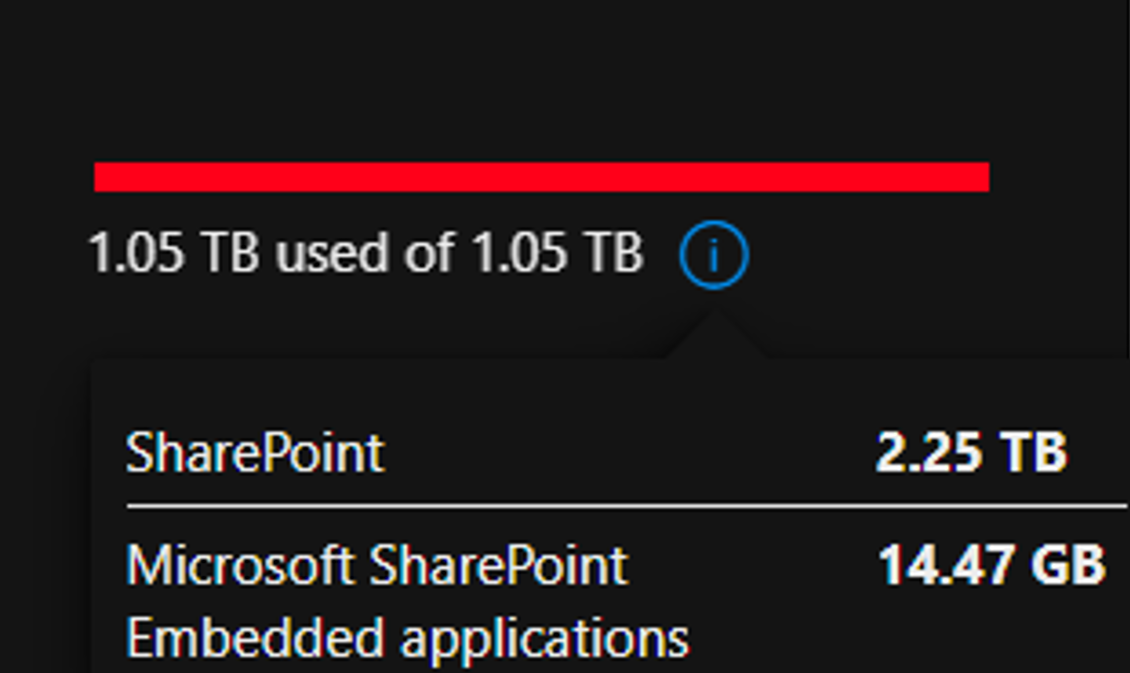

Although SharePoint initially reported 1.05 TB, clicking the information icon showed the actual high-water mark above.
1) Version Control and Intelligent Versioning
A historical look at storage and version control
Historically, SharePoint On-premises used storage optimization techniques such as storing only the delta of Office documents. If you added one word to a document, SharePoint might only store a few extra bytes. That made sense on-premises, where storage was harder to expand and often had fixed limits. In the cloud, storage is generally cheaper than processing, so it appears Microsoft shifted to storing full copies of each version rather than rebuilding documents from deltas each time they were requested.
That works from a cost-management perspective if you own the data centre, but for customers it means 500 copies of a 10 MB file can consume 5 GB of SharePoint storage instead of perhaps 20 or 30 MB of deltas.
SharePoint supports both major and minor versions. Minor versions are optional and usually limited to specific scenarios, such as reviewing draft policies. Major versions are the bigger concern. Versioning is managed at the library level and is enabled by default with a 500-version limit. Most organizations leave that setting in place.
Intelligent versioning to the rescue
To address this, Microsoft introduced Intelligent Versioning, which keeps fewer historical versions as files age:
First 30 days: Keeps all versions created, with no limit up to 500 versions (or whatever your maximum is set to).
30 to 60 days: Keeps only versions created at the top of each hour.
60 to 180 days: Keeps only versions created at the start of each day.
Beyond 180 days: Keeps only versions created at the start of each week until the max limit is reached.
This keeps representative copies without keeping every version and appears to be more effective than simply lowering the version limit.
Tenant-level settings only apply going forward, so organizations must run a PowerShell script to purge versions from existing document libraries. You can read up on that here: New-PnPLibraryFileVersionBatchDeleteJob | PnP PowerShell
Intelligent Versioning has reportedly reduced storage by as much as 80%. In our case, it reduced storage by about 40%, bringing us down to around 1.4 TB. Progress….
Wondering how much storage old document versions are consuming in your tenant?
Fill out the form at the end of this page!
2) Deleting empty and unnecessary sites
In SharePoint site administration, empty sites often appear to consume 0 GB of storage. In reality, that is a rounding issue: a basic empty site can still use up to 30 MB. Many organizations have hundreds or thousands of empty sites, which can add up quickly.
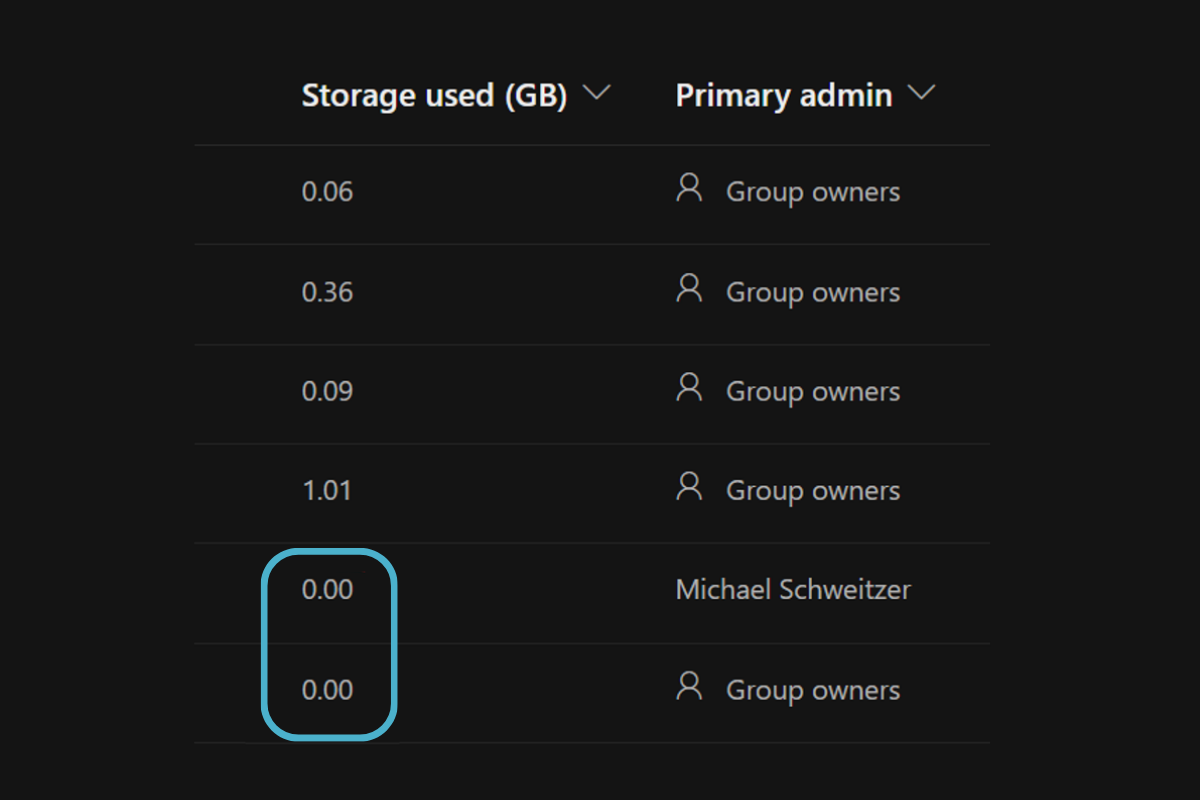
Not actually 0; more like 10–30 MB per site.
I created a PowerShell script to identify sites with 0 files or 0 GB of reported storage, no activity in the last two years, or names containing terms like test, demo, trial, or POC with no activity in the past year. That produced a list of inactive, unused, and temporary sites for review and potential deletion.
After reviewing the list, I ran another PowerShell script to delete those sites and purge them from the site recycling bin. Sites still count toward storage while they sit in the “Deleted Sites” area, so purging is necessary. Be careful, though: once purged, sites are only recoverable for 14 days via a Microsoft helpdesk ticket, and it’s not guaranteed.
Through this cleanup effort, we freed up another 350 GB of storage, bringing us down to 1.05 TB, our current limit.
Great progress so far, but we were still at our limit and I knew I had one more trick up my sleeve.
3) Getting Rid of Teams Meeting Recordings
We’re huge fans of recording our meetings. It allows us to be more present in the sessions with our clients and to review the meeting after the fact if something isn’t clear. That being said, those videos provide little value after a couple of months.
By default, your Teams meeting recordings are stored in OneDrive, and there’s a setting you can turn on to auto-dispose of them. However, given that they’re all stored in one place, we find that placing them in a shared location is more comfortable from a security standpoint and makes them more readily accessible to everyone on the project team without having to manage more complex permissions in OneDrive.
I was guessing that we had lots of stored recordings, but wasn’t sure just how many and the total volume of data that they would account for. It turns out, it was quite a bit.
I ran yet another PowerShell script that would look for mp4 files, the format that teams recordings are saved as, that were older than two years. Of the remaining 1.05 TB, roughly 40% or 400 GB were recorded videos and about 70% of those could be deleted — allowing us to delete around 260 GB of files from our tenant.
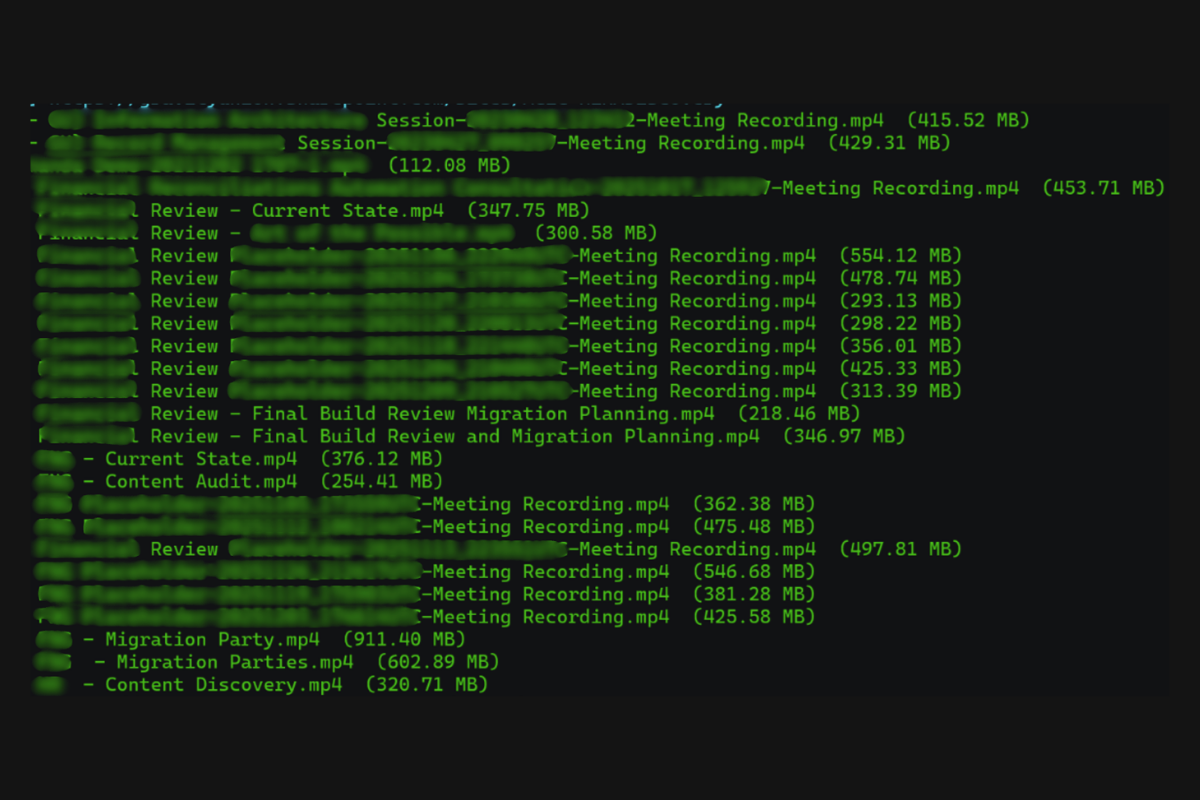
Script deleting teams meeting recordings
Now by the time that all this work was done, our licenses kicked in again, and the correct amount of storage was being allocated to our tenant, so we were no longer in danger of being over, but it sure was satisfying to see our storage reduce from 2.25 TB to a 793 GB in a 48 hour period and avoided having to pay for any additional SharePoint space.