Understanding Catalog Management in SharePoint
Microsoft has been expanding Catalog Management in SharePoint Admin Center, and the latest roadmap update (MC1413301) adds the ability to build your own site categories.
What does it help with?
Catalog management helps you use metadata to organize sites into meaningful groups for a centralized view of your site landscape.
An important concept is that Catalog Management reads metadata you already have and uses it to group sites. It does not write metadata onto your sites. It’s more of an organizing layer over signals that already exist in your tenant environment.
IT Admins can use this feature to help govern the SharePoint environment, analyze content and sites, and help prepare for AI.

Image: from Microsoft
How to access it
First step is to make sure you have a SharePoint Advanced Management license – this will show more reports and governance features in your SharePoint Admin.
You’ll find catalog management in the SharePoint admin center under Reports → Catalog management. It organizes your sites into two levels:
Categories: the high-level grouping, such as Department, Region, or User type.
Groups: the detail inside a category. A Department category might contain Marketing, Finance, and HR groups.
Once sites are grouped, you can view reporting by group to do things such as scope of governance actions and storage billing to those groups rather than site by site. Out of the box it ships with built-in categories including Locale, Department, User type, Preferred Data Location, and Information Barriers segment that don’t need setup.
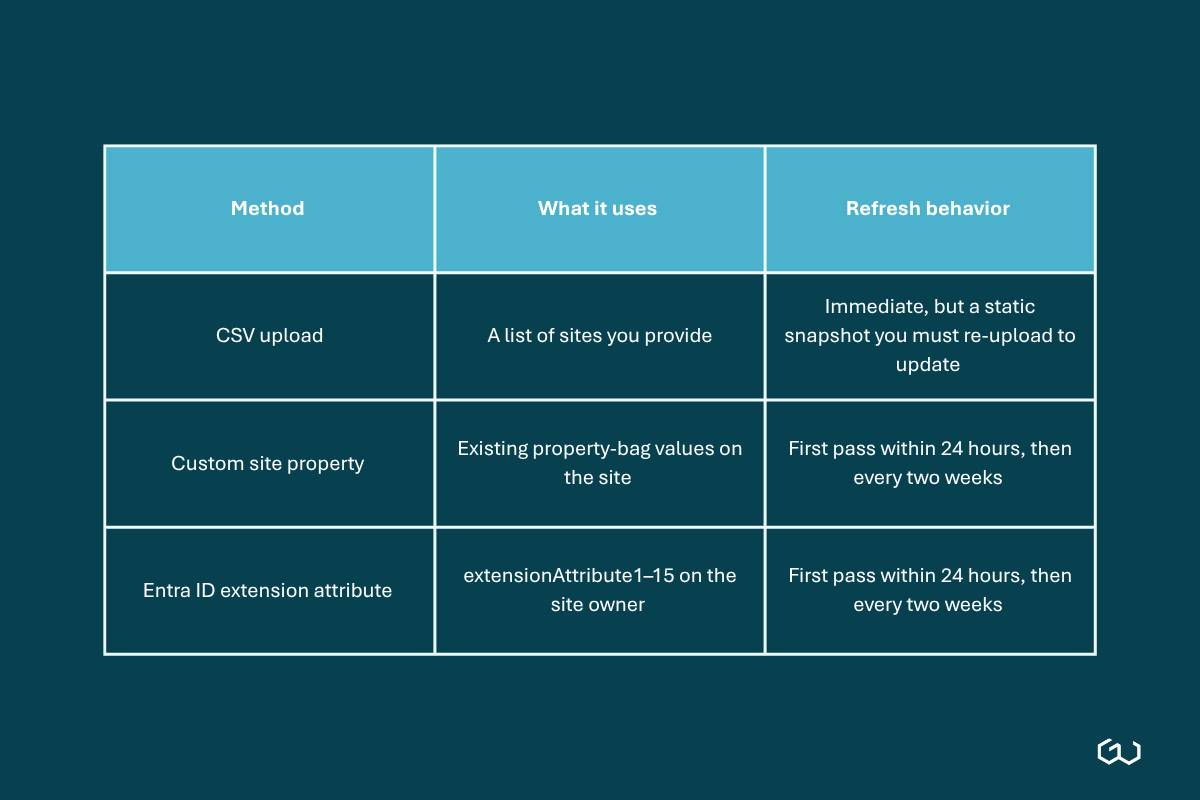
The newer part is that you can now add your own categories from three sources:
Keep in mind it reflects your metadata, it doesn’t fix it
This is an important line in Microsoft’s documentation.
“Catalog management doesn’t create or populate the property values… it reads existing property values.”
Renaming a category or group is cosmetic, as it doesn’t change the grouping or touch the site. The tool is a consumer of metadata, not a producer which has two direct consequences:
It won’t retag your sites. If your property bag or Entra ID attributes are inconsistent such as “Marketing” vs “Mktg”, you get inconsistent groups. Garbage in, garbage grouping.
Extension-attribute categories follow the site owner’s attributes. A site owned by someone in the “wrong” department can land in the wrong group potentially, even though nothing on the site itself is wrong.
Where it’s a good fit
You already keep clean site properties. If your provisioning process stamps a Department or Business Unit value into the property bag, the custom-property method is will show up well because you set it once and it maintains itself.
Your Entra ID directory is well-populated. If departments and regions already live in extension attributes, you get near-dynamic categories without maintaining a parallel list.
You want a fast pilot. A CSV of one department’s sites gets you a working category in minutes which helps prove value before you invest in automation or other enhancements.
You just need better reporting. Even with only the built-in categories, slicing your estate by “what Finance owns” beats a flat list of thousands of sites.
Where it falls short
Retagging and remediation: not its job, as above.
CSV categories go stale: they’re snapshots; new sites won’t appear until you re-upload.
A two-week refresh cycle: it’s not real-time control surface as properties update every two weeks, which is fine for governance, but frustrating if you expect instant feedback.
For two common situations where an organization hasn’t used site properties, or they want to clean up an incomplete tagging system, this feature can play a part to help.
If you haven’t used the property bag yet (starting clean)
This is a good place to be! You get to design the taxonomy properly instead of reverse-engineering one. There are two main paths:
Lean on Entra ID first. If your directory already has clean department and region attributes, you might consider using the extension-attribute method and skip the property bag entirely, as it requires less upfront work.
If you want site-property-driven categories, for say site-driven Adaptive Scopes, remember Catalog Management can’t populate them for you. You’ll need a way to write to the property bag first which is typically done with PnP PowerShell or a site-provisioning process. Please reach out if you need help or advice with this.
If you’re cleaning up an existing mess
Audit before you build. Pull the current property values (or extension attributes) and look at the results to hunt for issues such as casing, spelling, and abandoned tags.
Standardize at the source. Remember, fix the values in the property bag or Entra ID, not in Catalog Management.
Use a CSV category as a stopgap. While you clean up, a CSV snapshot could be useful as a priority group to help the reporting, without waiting for the source data to be perfect.
Switch to property- or Entra-driven once the values are trustworthy and retire the manual CSV so it doesn’t drift.
Summary
Catalog Management is a solid organizing and reporting layer, and it’s a good step to understanding site tagging and structure in your SharePoint environment.
Learn more: Catalog management in SharePoint Advanced Management - SharePoint in Microsoft 365 | Microsoft Learn