How to Customize SharePoint Like a Pro
Preview
In this blog post, learn 16+ ways to customize SharePoint using JSON formatting—with GitHub reference links and ready‑to‑paste source code you can use right away.
Picture this:
You walk into your boss's office Monday morning with a SharePoint list that actually looks... good. Not just functional — real good. Your boss raises an eyebrow. "Did you hire a developer?"
Nope. You just learned a little secret called JSON column formatting.
SharePoint doesn't have to look like a digital filing cabinet from 1999. With some simple tweaks, you can transform your lists into something people actually want to use.
And here's the best part: you don't need to be a coding wizard. If you can copy and paste, you're already 90% there.
I'm about to share 16+ JSON formatting tricks that'll make your SharePoint lists visually clear, more interactive, and fun to work with. (Okay, fine, there's a sneaky 17th bonus at the end so keep an eye out! 👀)
Getting Started: It's Easier Than You Think
Click the drop-down on any column → Column Settings → Format this column. Boom. You'll see a blank pane waiting for your JSON magic. (For the official deep dive, Microsoft's documentation is here, but let's be honest - you're here for the good stuff.)
Heads up: GitHub links are hyperlinks in orange, and the source code is in dropdowns below it. Don’t miss it!
This is the Format Title Column where you’ll place source code in.
1. Progress Bars: Because Numbers Are Boring
I'm a huge fan of gamification and UI/UX experiments in SharePoint. They keep people engaged and transform cold, hard numbers into something your brain can actually process at a glance.
Let's start simple, with a number column called ‘Progress’, which tracks project milestones from 0 to 100. Instead of staring at ‘73’ and wondering what that means, we can create a colorful horizontal bar that changes color based on value — instant visual feedback.
Example 1.1
Simple Progress Bar: A clean horizontal bar that fills up and changes color as your project moves forward.
-
<pre><code>
{
"$schema": "https://developer.microsoft.com/json-schemas/sp/v2/column-formatting.schema.json",
"elmType": "div",
"style": {
"width": "100%",
"height": "20px",
"background-color": "#f0f0f0",
"border-radius": "5px",
"position": "relative"
},
"children": [
{
"elmType": "div",
"style": {
"height": "100%",
"width": "=@currentField + '%'",
"background-color": "=if(@currentField <= 30, '#e74c3c', if(@currentField <= 70, '#f1c40f', '#2ecc71'))",
"border-radius": "5px"
}
},
{
"elmType": "span",
"txtContent": "=@currentField + '%'",
"style": {
"position": "absolute",
"width": "100%",
"text-align": "center",
"font-weight": "bold",
"color": "#000"
}
}
]
}
</code></pre>
Example 1.2
Progress with Emoji Feedback: This time, we’re adding personality! Watch emojis appear based on progress, making status tracking more fun and ridiculously easy to scan.
-
<pre><code>
{
"$schema": "https://developer.microsoft.com/json-schemas/sp/v2/column-formatting.schema.json",
"elmType": "div",
"style": {
"width": "100%",
"height": "30px",
"background-color": "white",
"border-radius": "5px",
"position": "relative"
},
"children": [
{
"elmType": "div",
"style": {
"height": "100%",
"width": "=@currentField + '%'",
"background-color": "#3498db",
"border-radius": "5px"
}
},
{
"elmType": "span",
"txtContent": "=if(@currentField == 100, '🎉', if(@currentField >= 61, '🏃', if(@currentField >= 21, '🚶','🐢'))) + ' ' + @currentField + '%'",
"style": {
"position": "absolute",
"left": "50%",
"top": "50%",
"transform": "translate(-50%, -50%)",
"font-weight": "bold",
"font-size": "22px",
"padding": "2px 6px",
"border-radius": "6px",
"background-color": "#ecf0f1",
"border": "1px solid #bdc3c7",
"color": "=if(@currentField <= 30, '#e74c3c', if(@currentField <= 70, '#f1c40f', '#2ecc71'))",
"text-align": "center"
}
}
]
}
</code></pre>
Example 1.3
Segmented Steps: Going a step further, here’s a milestone-based indicator where each achievement gets its own segment. It's a neat way to see how far you've come without reading a single number. Your boss will love this one.
-
<pre><code>
{
"$schema": "https://developer.microsoft.com/json-schemas/sp/v2/column-formatting.schema.json",
"elmType": "div",
"style": {
"width": "100%",
"height": "30px",
"background-color": "#ecf0f1",
"border-radius": "5px",
"display": "flex"
},
"children": [
{
"elmType": "div",
"style": {
"flex": "1",
"height": "100%",
"background-color": "=if(@currentField >= 25, '#e74c3c', '#ffffff')",
"border-right": "1px solid #bdc3c7",
"display": "flex",
"justify-content": "center",
"align-items": "center",
"font-size": "18px",
"color": "=if(@currentField >= 25, '#ffffff', '#7f8c8d')"
},
"txtContent": "=if(@currentField >= 25, '✔️', '○')"
},
{
"elmType": "div",
"style": {
"flex": "1",
"height": "100%",
"background-color": "=if(@currentField >= 50, '#f39c12', '#ffffff')",
"border-right": "1px solid #bdc3c7",
"display": "flex",
"justify-content": "center",
"align-items": "center",
"font-size": "18px",
"color": "=if(@currentField >= 50, '#ffffff', '#7f8c8d')"
},
"txtContent": "=if(@currentField >= 50, '✔️', '○')"
},
{
"elmType": "div",
"style": {
"flex": "1",
"height": "100%",
"background-color": "=if(@currentField >= 75, '#f1c40f', '#ffffff')",
"border-right": "1px solid #bdc3c7",
"display": "flex",
"justify-content": "center",
"align-items": "center",
"font-size": "18px",
"color": "=if(@currentField >= 75, '#ffffff', '#7f8c8d')"
},
"txtContent": "=if(@currentField >= 75, '✔️', '○')"
},
{
"elmType": "div",
"style": {
"flex": "1",
"height": "100%",
"background-color": "=if(@currentField >= 100, '#2ecc71', '#ffffff')",
"display": "flex",
"justify-content": "center",
"align-items": "center",
"font-size": "18px",
"color": "=if(@currentField >= 100, '#ffffff', '#7f8c8d')"
},
"txtContent": "=if(@currentField >= 100, '✔️', '○')"
}
]
}
</code></pre>
2. Choice Columns: Pills Are Just the Beginning
Sure, Microsoft gives us those standard "pill" buttons for choice columns. But can we make them better? Absolutely.
Example 2.1
Simple Priority Colors: A straightforward Priority column where high-priority items scream at you in red, making it harder to miss urgent tasks.
-
<pre><code>
{
"$schema": "https://developer.microsoft.com/json-schemas/sp/v2/column-formatting.schema.json",
"elmType": "div",
"txtContent": "@currentField",
"style": {
"color": "=if(@currentField == 'High', '#e74c3c', if(@currentField == 'Medium', '#f39c12', '#2ecc71'))",
"font-weight": "bold"
}
}
</code></pre>
Example 2.2
Modern Button Style with Icons: Let's level up with sleek button-style labels that include icons. Now we're talking professional and functional.
-
<pre><code>
{
"$schema": "https://developer.microsoft.com/json-schemas/sp/v2/column-formatting.schema.json",
"elmType": "div",
"style": {
"display": "flex",
"align-items": "center",
"padding": "4px 12px",
"border-radius": "8px",
"font-weight": "bold",
"color": "#ffffff",
"min-width": "140px",
"border": "1px solid #bdc3c7",
"box-shadow": "1px 2px 4px rgba(0,0,0,0.2)",
"background-color": "=if(@currentField == 'High', '#e74c3c', if(@currentField == 'Medium', '#f39c12', '#2ecc71'))"
},
"children": [
{
"elmType": "div",
"style": {
"width": "28px",
"height": "28px",
"border-radius": "50%",
"background-color": "#ffffff",
"display": "flex",
"justify-content": "center",
"align-items": "center",
"margin-right": "10px",
"font-size": "18px",
"color": "=if(@currentField == 'High','#e74c3c', if(@currentField == 'Medium','#f39c12','#2ecc71'))"
},
"txtContent": "=if(@currentField == 'High','⚠️',if(@currentField == 'Medium','⚡','✅'))"
},
{
"elmType": "span",
"txtContent": "@currentField"
}
]
}
</code></pre>
3. Due Dates: Stop Missing Deadlines
We all know the pain of missing a deadline because we didn't notice it buried in a sea of dates. Let's fix that.
Example 3.1
Color-Coded Indicators: Overdue dates turn red, dates within 7 days go golden (warning!), and anything with breathing room stays green. One glance tells you everything.
-
<pre><code>
{
"$schema": "https://developer.microsoft.com/json-schemas/sp/v2/column-formatting.schema.json",
"elmType": "div",
"style": {
"padding": "4px",
"font-weight": "600",
"color": "=if(Date(@currentField) > @now, '#dc3545', if(Date(@currentField) >= (@now - 604800000), '#ff7f07', '#28a745'))"
},
"children": [
{
"elmType": "span",
"txtContent": "@currentField"
}
]
}
</code></pre>
Example 3.2
Calendar Style Layout: This one's fancy. A miniature calendar view where today's date pops out visually. And yes, it can be conditionally colored too. With this style, watch your team actually pay attention to deadlines more.
-
<pre><code>
{
"$schema": "https://developer.microsoft.com/json-schemas/sp/v2/column-formatting.schema.json",
"elmType": "div",
"style": {
"display": "=if(@currentField,'flex','none')",
"margin": "5px 0",
"justify-content": "center",
"box-shadow": "0 4px 8px rgba(0,0,0,0.2)",
"border-radius": "8px",
"overflow": "hidden"
},
"children": [
{
"elmType": "div",
"style": {
"display": "flex",
"flex-direction": "row",
"background-color": "#fff",
"width": "100%"
},
"children": [
{
"elmType": "div",
"txtContent": "=substring('JANFEBMARAPRMAYJUNJULAUGSEPOCTNOVDEC',getMonth(@currentField)*3,getMonth(@currentField)*3+3)",
"style": {
"writing-mode": "vertical-rl",
"text-orientation": "mixed",
"padding": "4px 2px",
"background-color": "=if(toDateString(@currentField)==toDateString(@now),'#c43b33','#0078d4')",
"color": "white",
"font-weight": "bold",
"display": "flex",
"align-items": "center",
"justify-content": "center",
"box-shadow": "2px 0 4px rgba(0,0,0,0.15)"
}
},
{
"elmType": "div",
"style": {
"display": "flex",
"flex-direction": "column",
"flex-grow": "1",
"padding": "2px 8px",
"justify-content": "center",
"background-color": "#c7edff"
},
"children": [
{
"elmType": "div",
"txtContent": "=getDate(@currentField)",
"style": {
"font-size": "22px",
"font-weight": "bold",
"text-align": "center",
"color": "#333"
}
},
{
"elmType": "div",
"forEach": "weekday in split('0,1,2,3,4,5,6',',')",
"style": {
"white-space": "nowrap"
},
"attributes": {
"class": "ms-fontColor-themePrimary ms-fontWeight-bold"
},
"children": [
{
"elmType": "div",
"txtContent": "=if([$weekday]=='0','Saturday',if([$weekday]=='1','Sunday',if([$weekday]=='2','Monday',if([$weekday]=='3','Tuesday',if([$weekday]=='4','Wednesday',if([$weekday]=='5','Thursday',if([$weekday]=='6','Friday',''))))))",
"style": {
"margin-bottom": "2px",
"flex-grow": 1,
"width": "100%",
"display": "=if((getMonth(@currentField)+1)>2,if(((getDate(@currentField)+floor(26*(getMonth(@currentField)+1+1)/10)+Number(substring(toString(getYear(@currentField)),2,4))+floor(Number(substring(toString(getYear(@currentField)),2,4))/4)+floor(Number(substring(toString(getYear(@currentField)),0,2))/4)-2*Number(substring(toString(getYear(@currentField)),0,2)))%7)==Number([$weekday]),'','none'),if(((getDate(@currentField)+floor(26*(getMonth(@currentField)+1+12+1)/10)+Number(substring(toString(getYear(@currentField)-1),2,4))+floor(Number(substring(toString(getYear(@currentField)-1),2,4))/4)+floor(Number(substring(toString(getYear(@currentField)-1),0,2))/4)-2*Number(substring(toString(getYear(@currentField)-1),0,2)))%7)==Number([$weekday]),'','none')"
}
}
]
}
]
}
]
}
]
}
</code></pre>
4. Status Tracking: Make It Exciting
Status tracking doesn’t have to feel like homework. Since these updates can bring a bit of deadline stress, let’s redesign and make them something fun to look at.
Example 4.1
Icons for Every Status: Each status gets its own matching icon. Simple, clean, effective.
-
<pre><code>
{
"$schema": "https://developer.microsoft.com/json-schemas/sp/v2/column-formatting.schema.json",
"elmType": "span",
"txtContent": "=if(@currentField == 'Completed', '✅ Completed', if(@currentField == 'In Progress', '⏳ In Progress', '❌ Not Started'))"
}
</code></pre>
Example 4.2
Modern Badges: Badge-style labels with conditionally colored text. It's like your list went to design school.
-
<pre><code>
{
"$schema": "https://developer.microsoft.com/json-schemas/sp/v2/column-formatting.schema.json",
"elmType": "div",
"style": {
"display": "inline-flex",
"align-items": "center",
"padding": "4px 10px",
"border-radius": "16px",
"background-color": "=if(@currentField == 'Completed', '#d1fae5', if(@currentField == 'In Progress', '#fef3c7', '#fee2e2'))",
"color": "=if(@currentField == 'Completed', '#065f46', if(@currentField == 'In Progress', '#92400e', '#991b1b'))",
"box-shadow": "0 2px 6px rgba(0,0,0,0.15)"
},
"children": [
{
"elmType": "span",
"style": {
"margin-right": "6px"
},
"txtContent": "=if(@currentField == 'Completed', '✅', if(@currentField == 'In Progress', '⏳', '❌'))"
},
{
"elmType": "span",
"txtContent": "@currentField"
}
]
}
</code></pre>
5. Multi-Column Magic: Personal Priorities
Here's where it gets really cool. Did you know that SharePoint lets you combine columns and conditions for seriously smart formatting? I call it the Multi-Column Magic.
Imagine this: You create formatting that highlights high-priority items assigned specifically to you. It's dynamic, meaning everyone sees their own assignments highlighted. Suddenly, your list is working for you (using @me formula), not against you. Boss = impressed 😎
-
<pre><code>
{
"$schema": "https://developer.microsoft.com/json-schemas/sp/v2/column-formatting.schema.json",
"elmType": "div",
"style": {
"padding": "4px 8px",
"border-radius": "6px",
"font-weight": "=if(@currentField == 'High' && @me == [$AssignedTo.email], '600', '400')",
"background-color": "=if(@currentField == 'High' && @me == [$AssignedTo.email], '#fee2e2', '')",
"color": "=if(@currentField == 'High' && @me == [$AssignedTo.email], '#991b1b', '')"
},
"children": [
{
"elmType": "span",
"txtContent": "=if(@currentField == 'High' && @me == [$AssignedTo.email], '🔥 High', @currentField)"
}
]
}
</code></pre>
6. Status + Date Combo: The Dynamic Duo
Sometimes you need dates and status to work together.
This “dynamic duo” formatting shows every overdue item, unless it's marked "Completed." Because who cares if something's technically overdue when it's already done?
-
<pre><code>
{
"$schema": "https://developer.microsoft.com/json-schemas/sp/v2/column-formatting.schema.json",
"elmType": "div",
"style": {
"padding": "4px 8px",
"border-radius": "6px",
"display": "flex",
"flex-direction": "column",
"justify-content": "center",
"background-color": "=if(@currentField < @now && [$Status] != 'Completed', '#fff7ed', '')"
},
"children": [
{
"elmType": "div",
"style": {
"font-size": "12px",
"font-weight": "600",
"color": "#9a3412"
},
"txtContent": "=if(@currentField < @now && [$Status] != 'Completed', '⚠ Overdue', '')"
},
{
"elmType": "div",
"style": {
"font-weight": "=if(@currentField < @now && [$Status] != 'Completed', '600', '400')",
"color": "=if(@currentField < @now && [$Status] != 'Completed', '#9a3412', '')"
},
"txtContent": "=toLocaleDateString(@currentField)"
}
]
}
</code></pre>
7. Yes/No Columns: Beyond the Checkmark
A Yes/No column walks into a SharePoint list. Boring, right? Not anymore.
Example 7.1
Achievement Icons: Every "Yes" becomes a beautiful icon instead of that sad little checkmark. We're celebrating wins here!
-
<pre><code>
{
"$schema": "https://developer.microsoft.com/json-schemas/sp/v2/column-formatting.schema.json",
"elmType": "span",
"style": {
"font-size": "18px",
"color": "=if(@currentField, '#16a34a', '#dc2626')"
},
"txtContent": "=if(@currentField, '✅', '❌')"
}
</code></pre>
Example 7.2
Interactive Buttons: Wait for it... clickable buttons that let you toggle Yes/No values right from the list view. No opening items, no extra clicks. Pure magic.
-
<pre><code>
{
"$schema": "https://developer.microsoft.com/json-schemas/sp/v2/column-formatting.schema.json",
"elmType": "div",
"children": [
{
"elmType": "div",
"style": {
"display": "flex"
},
"children": [
{
"elmType": "div",
"style": {
"border-top-left-radius": "12px",
"border-bottom-left-radius": "12px",
"cursor": "pointer",
"padding": "5px 0px",
"text-align": "center",
"width": "70px",
"background-color": "=if(@currentField,'#16a34a','transparent')",
"border-left": "2px solid #15803d",
"border-top": "2px solid #15803d",
"border-bottom": "2px solid #15803d",
"color": "=if(@currentField,'white','#16a34a')"
},
"attributes": {
"class": "ms-fontColor-white ms-fontWeight-bold"
},
"txtContent": "✅",
"customRowAction": {
"action": "setValue",
"actionInput": {
"Achievement": "=if(@currentField , '0' , '1' )"
}
}
},
{
"elmType": "div",
"style": {
"cursor": "pointer",
"border-top": "2px solid #15803d",
"border-bottom": "2px solid #15803d"
},
"children": [
{
"elmType": "div",
"style": {
"height": "30px",
"width": "10px",
"background-color": "=if(@currentField , '#16a34a', '#dc2626')",
"border-left": "=if(@currentField ,'','2px solid #15803d')",
"border-right": "=if(@currentField,'2px solid #dc2626','')",
"border-top-left-radius": "=if(@currentField,'','30px')",
"border-bottom-left-radius": "=if(@currentField,'','30px')",
"border-top-right-radius": "=if(@currentField,'30px','')",
"border-bottom-right-radius": "=if(@currentField,'30px','')"
}
}
]
},
{
"elmType": "div",
"style": {
"border-top-right-radius": "12px",
"border-bottom-right-radius": "12px",
"border-right": "2px solid #b91c1c",
"cursor": "pointer",
"padding": "5px 0px",
"width": "70px",
"text-align": "center",
"background-color": "=if(@currentField,'transparent', '#dc2626')",
"color": "=if(@currentField,'#dc2626','white')",
"border-top": "2px solid #b91c1c",
"border-bottom": "2px solid #b91c1c"
},
"attributes": {
"class": "ms-fontWeight-bold"
},
"txtContent": "=if(@currentField , '❗' , '❕' )",
"customRowAction": {
"action": "setValue",
"actionInput": {
"Achievement": "=if(@currentField , '0' , '1' )"
}
}
}
]
}
]
}
</code></pre>
8. File Type Icons: Know Your Files at a Glance
Ever squint at file icons trying to figure out what type of document you're looking at? Let's fix the system Type column (yes, you can format those too!).
-
<pre><code>
{
"$schema": "https://developer.microsoft.com/json-schemas/sp/v2/column-formatting.schema.json",
"elmType": "div",
"children": [
{
"elmType": "span",
"attributes": {
"iconName": "=if(endsWith([$FileLeafRef], '.pdf'), 'PDF', if(endsWith([$FileLeafRef], '.docx'), 'WordDocument', if(endsWith([$FileLeafRef], '.xlsx'), 'ExcelDocument', 'TextDocument')))"
},
"style": {
"margin-right": "6px",
"color": "=if(endsWith([$FileLeafRef], '.pdf'), '#d9534f', if(endsWith([$FileLeafRef], '.docx'), '#2b5797', if(endsWith([$FileLeafRef], '.xlsx'), '#217346', '#6c757d')))",
"font-size": "24px"
}
}
]
}
</code></pre>
Example 8.2
Icons + Colored Pills + Names: We're going full designer mode here, enhanced icons with color-coded type indicators and styled file names. It's beautiful and functional.
-
<pre><code>
{
"$schema": "https://developer.microsoft.com/json-schemas/sp/v2/column-formatting.schema.json",
"elmType": "div",
"style": {
"display": "flex",
"align-items": "center",
"gap": "6px"
},
"children": [
{
"elmType": "span",
"attributes": {
"iconName": "=if(endsWith([$FileLeafRef], '.pdf'), 'PDF', if(endsWith([$FileLeafRef], '.docx'), 'WordDocument', if(endsWith([$FileLeafRef], '.xlsx'), 'ExcelDocument', if(endsWith([$FileLeafRef], '.pptx'), 'PowerPointDocument', if(endsWith([$FileLeafRef], '.jpg') || endsWith([$FileLeafRef], '.png') || endsWith([$FileLeafRef], '.gif'), 'Picture', 'Page')))))",
"title": "=if(endsWith([$FileLeafRef], '.pdf'), 'PDF File', if(endsWith([$FileLeafRef], '.docx'), 'Word Document', if(endsWith([$FileLeafRef], '.xlsx'), 'Excel Spreadsheet', if(endsWith([$FileLeafRef], '.pptx'), 'PowerPoint Presentation', if(endsWith([$FileLeafRef], '.jpg') || endsWith([$FileLeafRef], '.png') || endsWith([$FileLeafRef], '.gif'), 'Image File', 'Other File')))))"
},
"style": {
"font-size": "22px",
"color": "=if(endsWith([$FileLeafRef], '.pdf'), '#d9534f', if(endsWith([$FileLeafRef], '.docx'), '#2b5797', if(endsWith([$FileLeafRef], '.xlsx'), '#217346', if(endsWith([$FileLeafRef], '.pptx'), '#d46a00', if(endsWith([$FileLeafRef], '.jpg') || endsWith([$FileLeafRef], '.png') || endsWith([$FileLeafRef], '.gif'), '#f0ad4e', '#6c757d')))))"
}
},
{
"elmType": "span",
"txtContent": "=substring([$FileLeafRef], 0, indexOf([$FileLeafRef], '.'))",
"style": {
"background-color": "=if(endsWith([$FileLeafRef], '.pdf'), '#f8d7da', if(endsWith([$FileLeafRef], '.docx'), '#dbe5f7', if(endsWith([$FileLeafRef], '.xlsx'), '#d4edda', if(endsWith([$FileLeafRef], '.pptx'), '#fff3cd', if(endsWith([$FileLeafRef], '.jpg') || endsWith([$FileLeafRef], '.png') || endsWith([$FileLeafRef], '.gif'), '#fff0d6', '#e1e1e1')))))",
"color": "=if(endsWith([$FileLeafRef], '.pdf'), '#d9534f', if(endsWith([$FileLeafRef], '.docx'), '#2b5797', if(endsWith([$FileLeafRef], '.xlsx'), '#217346', if(endsWith([$FileLeafRef], '.pptx'), '#d46a00', if(endsWith([$FileLeafRef], '.jpg') || endsWith([$FileLeafRef], '.png') || endsWith([$FileLeafRef], '.gif'), '#f0ad4e', '#333')))))",
"padding": "2px 8px",
"border-radius": "12px",
"font-size": "14px",
"font-weight": "600",
"white-space": "nowrap",
"overflow": "hidden",
"text-overflow": "ellipsis"
}
}
]
}
</code></pre>
9. Action Buttons: Direct Interaction
In case you didn’t know, SharePoint lets you add clickable action buttons right in your lists! Mind. Blown.
Example 9.1
Quick Share Button: One click to share an item. No menus, no hassle. Your users will thank you.
-
<pre><code>
{
"$schema": "https://developer.microsoft.com/json-schemas/sp/v2/column-formatting.schema.json",
"elmType": "button",
"attributes": {
"class": "ms-fontColor-white",
"title": "Share this item"
},
"style": {
"background-color": "#0078D4",
"border": "none",
"border-radius": "6px",
"padding": "6px 12px",
"cursor": "pointer",
"display": "flex",
"align-items": "center",
"gap": "6px",
"box-shadow": "2px 2px 4px rgba(0,0,0,0.2)"
},
"children": [
{
"elmType": "span",
"attributes": {
"iconName": "Share"
},
"style": {
"font-size": "16px",
"color": "white"
}
},
{
"elmType": "span",
"txtContent": "Share",
"style": {
"font-weight": "600",
"color": "white"
}
}
],
"customRowAction": {
"action": "share"
}
}
</code></pre>
Example 9.2
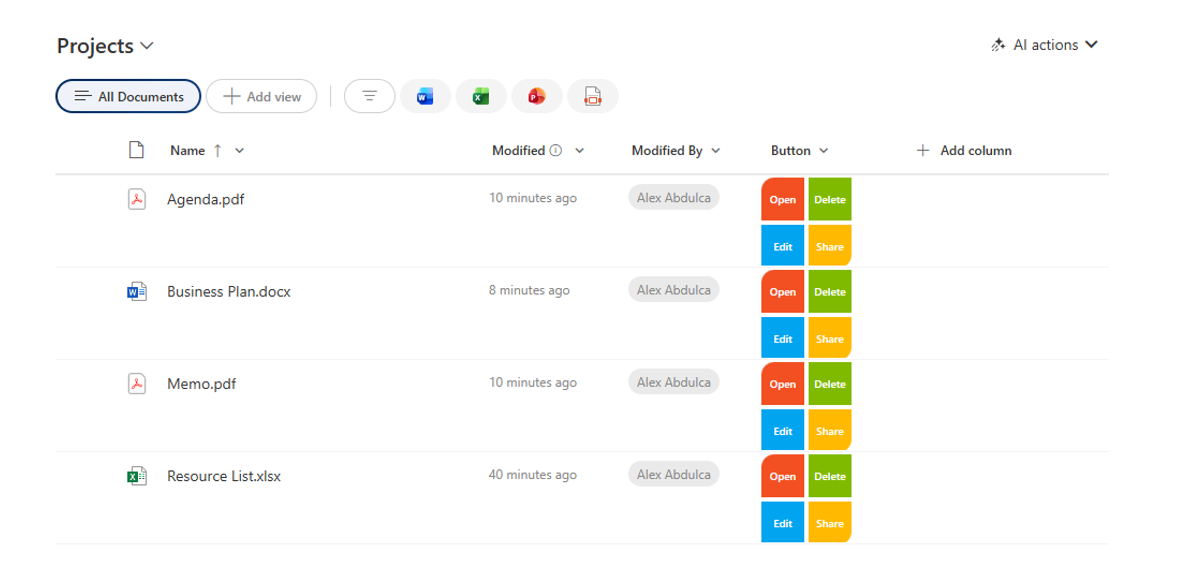
Microsoft Logo Action Panel: The grand finale: A gorgeous action panel styled like the Microsoft logo, where each button has its own color, icon, and action. When your boss sees this, you may get extra brownie points toward a promotion.
-
<pre><code>
{
"$schema": "https://developer.microsoft.com/json-schemas/sp/v2/column-formatting.schema.json",
"elmType": "div",
"style": {
"width": "84px",
"height": "84px",
"display": "flex",
"flex-direction": "row",
"flex-wrap": "wrap"
},
"children": [
{
"elmType": "div",
"style": {
"display": "flex"
},
"children": [
{
"elmType": "button",
"txtContent": "Open",
"style": {
"background-color": "#f25022",
"border": "none",
"width": "40px",
"height": "40px",
"display": "flex",
"align-items": "center",
"justify-content": "center",
"color": "white",
"font-weight": "600",
"font-size": "10px",
"cursor": "pointer",
"border-top-left-radius": "12px",
"margin": "2px"
},
"customRowAction": {
"action": "defaultClick"
}
},
{
"elmType": "button",
"txtContent": "Delete",
"style": {
"background-color": "#7fba00",
"border": "none",
"width": "40px",
"height": "40px",
"display": "flex",
"align-items": "center",
"justify-content": "center",
"color": "white",
"font-weight": "600",
"font-size": "10px",
"cursor": "pointer",
"margin": "2px"
},
"customRowAction": {
"action": "delete"
}
}
]
},
{
"elmType": "div",
"style": {
"display": "flex"
},
"children": [
{
"elmType": "button",
"txtContent": "Edit",
"style": {
"background-color": "#00a4ef",
"border": "none",
"width": "40px",
"height": "40px",
"display": "flex",
"align-items": "center",
"justify-content": "center",
"color": "white",
"font-weight": "600",
"font-size": "10px",
"cursor": "pointer",
"margin": "2px"
},
"customRowAction": {
"action": "editProps"
}
},
{
"elmType": "button",
"txtContent": "Share",
"style": {
"background-color": "#ffb900",
"border": "none",
"width": "40px",
"height": "40px",
"display": "flex",
"align-items": "center",
"justify-content": "center",
"color": "white",
"font-weight": "600",
"font-size": "10px",
"cursor": "pointer",
"border-bottom-right-radius": "12px",
"margin": "2px"
},
"customRowAction": {
"action": "share"
}
}
]
}
]
}
</code></pre>
The Bottom Line
I've shown you just a glimpse of what SharePoint formatting can do. The real magic happens when you start experimenting and making these lists your own.
SharePoint can be customized. You can make it look professional. And yes, you can absolutely impress your boss this Monday. Now go forth and format. Your plain SharePoint lists won't know what hit them!
Read more articles about SharePoint