Understand the Ins-and-Outs of SharePoint Versions
Preview
SharePoint versioning is easy to use, but the way versions are stored behind the scenes can have a big impact on your tenant over time. In this article, learn:
How SharePoint version history really works—what creates it and why they add up fast
The hidden impact of versions on storage and compliance, especially in collaborative M365 environments
How automatic versioning helps control growth while still preserving the most useful restore points
Versioning in SharePoint seems simple on the surface, but the way versions are stored and managed can have an impact on storage, compliance, and day‑to‑day operations. Many organizations don’t think about versioning until storage use is getting close to maxing out or a compliance review exposes gaps. This post breaks down how SharePoint handles versions, what the different controls mean, and tips for getting started with a versioning strategy.
Note: this post focuses on SharePoint libraries, not lists.
Why versions matter
Users like version history because it’s an easy way to compare changes over time, see who changed what, and rollback changes when needed. People can simply restore a previous version which replaces the current version.
SharePoint creates a version each time a file is saved or when metadata changes.
In large Microsoft 365 tenants, it’s common to discover that file version history accounts for significant SharePoint storage consumption once libraries have been active for several years. This is especially true in environments with heavy collaboration, AutoSave, and co‑authoring.
Beyond storage, there’s also a compliance consideration. Retaining unlimited versions indefinitely can mean holding onto data longer than intended, increasing legal and regulatory risk if versioning and retention are not managed together.
Why version history grows so quickly
Version growth is rarely caused by users intentionally creating versions. It’s usually a side effect of how modern collaboration works in SharePoint.
SharePoint libraries have a default limit of 500 versions. Each version counts toward your storage. As users collaborate and update files, libraries can grow quickly without anyone noticing.
Each version is a full copy of the file, not just the changes. That means:
· AutoSave can generate many versions during a single editing session
· Co‑authoring increases save frequency
· Metadata updates (not just file edits) can also create versions
Over time, even moderately sized files can accumulate hundreds of versions. Because this happens quietly in the background, storage growth often goes unnoticed until quotas are reached or reporting surfaces the issue.
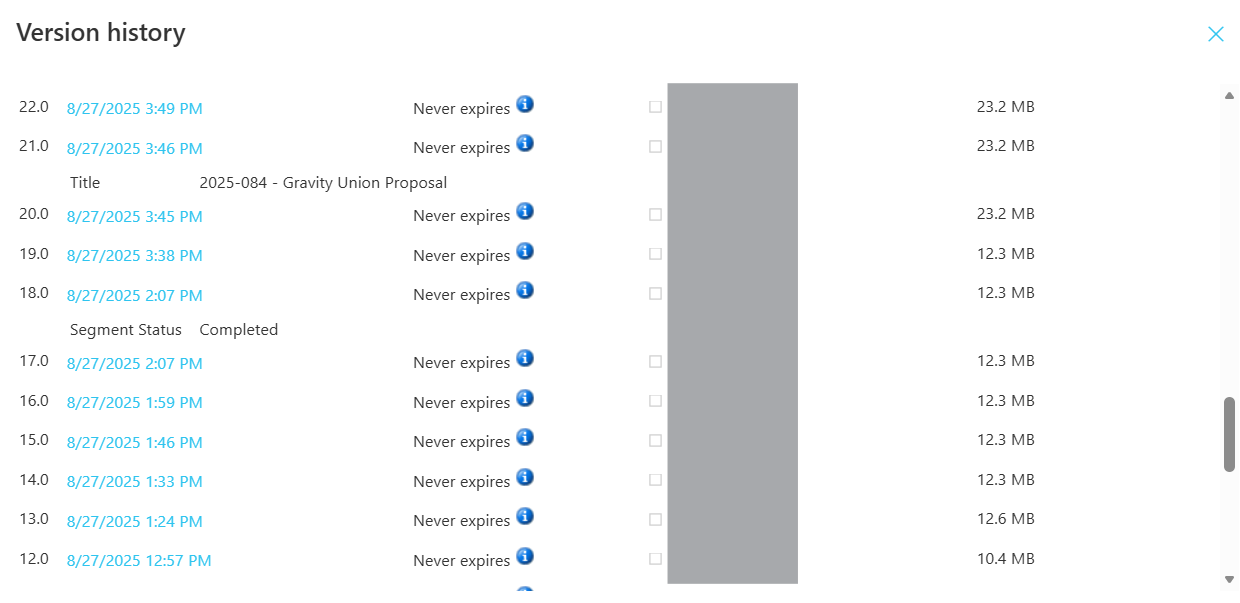
Here’s an example of versions on a document growing over a period of a few hours:
Version history example for a document in a library
Without planning, these versions will linger indefinitely as well, taking up valuable storage space.
Version configuration options
You have 3 basic configuration options for types of versions to retain:
1. Number of versions to retain (count setting): this can be set between 100 and 50,000 through the UI.
2. How long to keep versions (time-based setting): this can be set between 29 days and 100 years.
3. Automatic version handling where Microsoft uses an algorithm to automatically trim versions as they age: this is the recommended setting for most document libraries.
To change the setting for a library, go to Library Settings > Versioning settings and select the Automatic option:
Versioning settings on a SharePoint library
These can be set at the library level, or through PowerShell when bulk changes are needed. Note that there is a tenant level setting to apply version settings, but this applies to newly created libraries. Existing libraries should be updated with PowerShell.
Read more from Microsoft: Change version history limits for a Site - SharePoint in Microsoft 365 | Microsoft Learn
How automatic versions work
The automatic version setting is Microsoft's recommended mode for most organizations. It automates keeping more recent versions while trimming older ones. As versions age, SharePoint keeps fewer copies, which reduces storage without taking the most useful history away from users.
Microsoft positions it as the best balance between usability and storage optimization. Users still get the “high‑value” versions they rely on, while your tenant avoids uncontrolled growth.
In practice, organizations often see significant reductions in version‑related storage once automatic limits are applied, especially when compared to fixed version count or time‑based approaches.
Here’s how automatic versioning compares to the older ways of handling versions which were by count and time-based limits. As users edit a file over time and activity diminishes, fewer older versions are stored:
Automatic versioning keeps dense restore points for recent activity, while thinning older versions over time to reduce storage. Source: Microsoft
Here’s another way to understand this with an example. Let’s say a document has 100 versions created over a month, this is how the versions might be saved over time for each setting:
At the end of 4 months, the automatic setting will result in over 90% less storage than the count setting, and still leave users with some version history. With the time setting that removes versions after 60 days, the library will have zero versions. The automatic setting is the best balance for usability and storage.
Gotchas to watch for
A few things to look out for when reviewing versioning practices:
Trimming does not send versions to the recycle bin. They are permanently removed.
Tenant‑level settings only apply to new libraries unless updated with PowerShell.
Versioning interacts with compliance retention policies, so both need to be reviewed together. Note: retention wins over version trimming.
High‑change documents (like spreadsheets) generate versions quickly. You can use PowerShell for a ‘what if’ analysis to generate an impact analysis.
Summary and next steps
Version history is one of those SharePoint features that quietly does its job until it doesn’t. Without clear limits, versions accumulate in the background, driving storage growth and complicating compliance. With the right defaults and an understanding of how automatic versioning works, organizations can strike a balance between collaboration, recoverability, and long‑term governance.
If you haven’t reviewed version history limits in your tenant recently, start with identifying where version history is driving storage growth and then move toward automated limits where appropriate. Small configuration changes here can have an outsized impact on long‑term storage and compliance posture. If you need a hand, contact us.
Read more articles about SharePoint